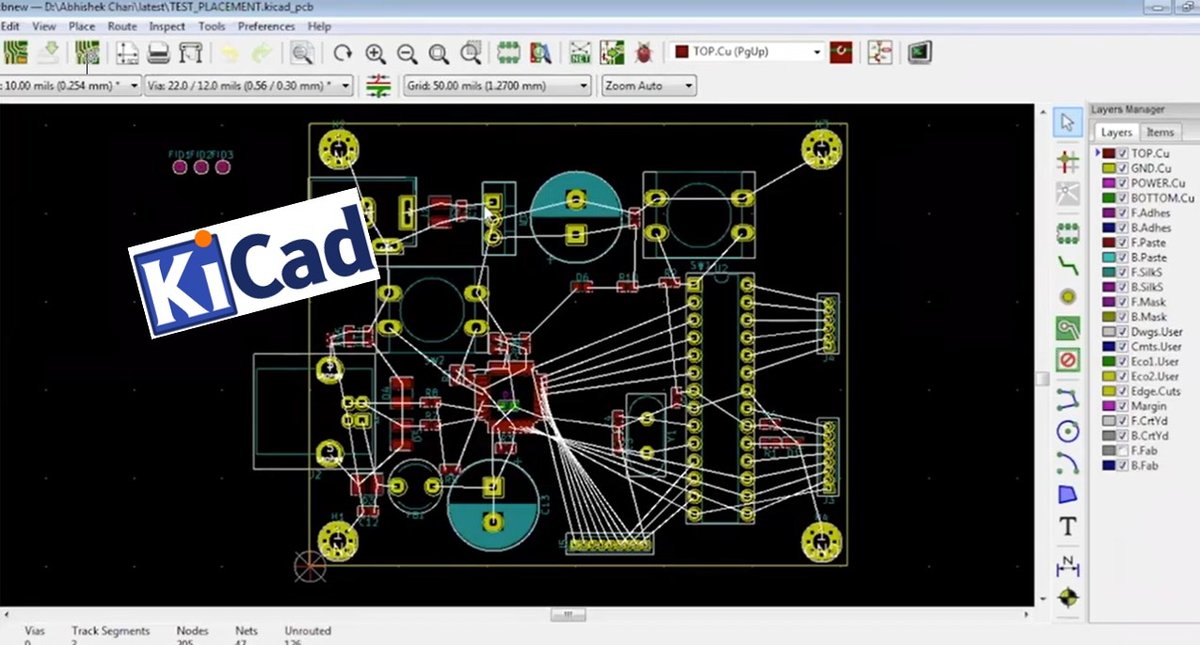
Navigating the intricate world of PCB design can feel like assembling a complex puzzle, but at its heart, effective work relies on well-organized building blocks. This is where KiCad Libraries & Component Management becomes not just a technical necessity, but a cornerstone of efficient, reliable, and error-free electronic design. Without a robust system for handling your components—from resistors to microcontrollers—you're not just risking design flaws; you're stifling your productivity and creativity. Mastering KiCad's library system isn't just about finding parts; it's about building a sustainable design workflow that accelerates your projects and ensures consistency across your portfolio.
At a Glance: Key Takeaways for KiCad Library Mastery
- Official Libraries are Your Starting Point: KiCad includes extensive, community-maintained libraries for common components, hosted on GitLab.
- Stay Current: Regularly update your system libraries to access the latest components and fixes.
- Components = Symbol + Footprint + 3D Model: Each component needs a schematic symbol (
.lib), a PCB footprint (.mod), and ideally, a 3D model for visualization. - Custom Libraries are Essential: Create your own for specialized, proprietary, or frequently used parts to maintain control and consistency.
- Management is Key: Use KiCad's Library Manager to add, remove, and organize your libraries efficiently.
- Name Components Smartly: Use descriptive, specific names and metadata for better searchability in your custom libraries.
- Version Control Your Custom Work: Treat your custom libraries like code; use Git or similar tools to track changes and collaborate.
- Prioritize Consistency: Standardize naming conventions and design practices for symbols and footprints across your projects.
Why Libraries Matter: The Unsung Heroes of PCB Design
Imagine trying to build a complex structure with mismatched bricks, or having to sculpt each brick from scratch every single time. That's what designing PCBs without a proper library system feels like. KiCad libraries are precisely those standardized, reusable "bricks" – digital containers for the electrical design components (schematic symbols, PCB footprints, and 3D models) that populate your circuit boards. They facilitate design reuse, ensure consistency, and dramatically reduce the risk of errors that can derail your project, costing time and money.
Whether you're a hobbyist prototyping a new gadget or a professional engineering a complex system, the efficiency gained from a well-managed component library is immeasurable. It allows you to focus on the circuit's function rather than spending countless hours redrawing common parts or verifying pin assignments for the hundredth time.
Understanding KiCad's Library Landscape
KiCad, a powerful open-source EDA suite, comes with a rich ecosystem of pre-built libraries, but also offers the flexibility for you to create and manage your own. Let's break down where these libraries come from and how they're structured.
The Official KiCad Libraries: Your Foundation
When you install KiCad, a comprehensive set of official libraries comes pre-packaged. These aren't just arbitrary collections; they're the result of a dedicated global community, constantly contributing, refining, and verifying components.
- Source and Structure: These libraries are primarily hosted on GitLab. For KiCad versions 6.x, 7.x, 8.x, and 9.x, they are meticulously organized into four distinct GitLab repositories:
- Schematic symbols: The graphical representations of components in your circuit diagram.
- PCB footprints: The physical layouts and solder pads that components occupy on the printed circuit board.
- 3D models: Visualizations of components for realistic board renderings.
- Source files for 3D models: The raw files used to generate the 3D models.
- Project templates: Pre-configured project structures to kickstart new designs.
- Staying Current: These libraries are actively maintained for the current stable KiCad version. The community regularly pushes updates, bug fixes, and new components. Most users will rely on the pre-packaged versions, but for the bleeding edge or to fetch critical updates, you can pull changes directly from GitLab. This often involves updating specific files rather than downloading the entire set each time, making the process efficient.
- Historical Access: For those needing to revisit older projects, libraries for previous KiCad versions (e.g., 5.x, 4.x) are preserved. While no longer actively maintained, their repositories are archived as read-only on GitHub and GitLab, allowing you to download them if needed to ensure compatibility with legacy designs. This historical tagging by point release is a testament to the community's commitment to long-term usability.
Anatomy of a KiCad Library Entry: The Building Blocks
At its core, a complete component in KiCad consists of several interlinked pieces of information, distributed across different file types:
- Schematic Symbols (
.libfiles): These are the abstract, logical representations of your electronic components used in the schematic editor. A.libfile can contain multiple symbols. They define pin names, numbers, electrical types (input, output, power, passive), and graphical appearance. - PCB Footprints (
.kicad_modfiles, formerly.mod): These define the physical characteristics of a component on the PCB. A.kicad_modfile (or older.mod) contains the pad layout, silk screen outlines, courtyard areas, and any other mechanical data required for manufacturing and assembly. Each.kicad_modfile typically represents a single footprint. - 3D Models (
.wrl,.step, etc.): While not strictly required for basic functionality, 3D models are invaluable for visualization, collision checking, and creating professional-looking renderings of your finished PCB. They allow you to see how components will physically sit on your board, aiding in mechanical enclosure design and overall board aesthetics.
The crucial aspect of KiCad Libraries & Component Management is effectively associating these three elements so that when you place a schematic symbol, KiCad knows exactly which footprint and 3D model should go with it.
Your Toolkit for KiCad Library Management
KiCad provides intuitive tools to manage your component libraries. Whether you're adding official libraries, third-party collections, or your own custom creations, the process is streamlined through dedicated managers.
Accessing the Library Manager
The primary interface for managing your libraries is consistent across KiCad's main editors:
- Open KiCad's main window.
- Launch either the Schematic Editor (KiCad's Eeschema) or the Footprint Editor (KiCad's Pcbnew, though sometimes referred to as the Fingerprint editor in documentation).
- Once in either editor, look for the "bookstore icon" (often represented as a library symbol or a stack of books) in the toolbar. Clicking this will open the respective library manager dialog.
- For schematic symbols, it's typically called the "Symbol Library Manager."
- For PCB footprints, it's the "Footprint Library Manager."
These managers allow you to view existing libraries, their paths, and their status (enabled/disabled).
Adding Existing Libraries
Whether you've downloaded a vendor-specific library, obtained one from a community forum, or simply need to re-add a system library, the process is straightforward:
- Open the appropriate Library Manager (Symbol or Footprint).
- Click the "Add" button (often represented by a plus sign).
- Browse and locate the
.libfile (for symbols) or the.kicad_moddirectory (for footprints) you wish to add.
- Note: KiCad 6.0+ uses a directory structure for footprints, where each footprint is a
.kicad_modfile within a folder representing the library. Older versions used a single.modfile for an entire footprint library. Ensure you're selecting the correct type based on your KiCad version and the library's structure.
- Import the desired library. KiCad will then list it in your active libraries.
- Save changes before exiting the Library Manager to ensure the new library path is persistent.
Organizing Your Libraries: Paths and Preferences
Effective KiCad Libraries & Component Management isn't just about adding parts; it's about organizing them so they're easily accessible and maintainable.
- Global Libraries: These are available to all your KiCad projects. The official KiCad libraries are prime examples.
- Project-Specific Libraries: For specialized components unique to a project, or to ensure a project remains self-contained, you can add libraries that are only accessible within that particular project. This is particularly useful for avoiding conflicts or ensuring specific component versions are used. You typically add these directly within the project's settings or by placing them within the project folder.
- Path Management: Be mindful of where your libraries are stored. Using relative paths (e.g.,
.\lib\my_custom_parts.lib) for project-specific libraries makes your projects more portable. For global libraries, using a dedicated, centralized location (like the KiCad default library path or a network drive for teams) is best.
Building Your Own: Crafting Custom KiCad Libraries
While official libraries cover a vast array of standard components, there will inevitably be times when you need something custom: a proprietary IC, a unique connector, or a highly specialized variant of a common part. This is where creating your own KiCad libraries becomes indispensable.
Why Go Custom?
- Specialized Components: For parts not found in official libraries.
- Proprietary Designs: Keeping sensitive component information internal.
- Consistency and Standards: Enforcing internal naming conventions or design rules.
- Version Control: Having absolute control over component revisions.
- Reduced Bloat: Only including the components you actually use, rather than browsing through thousands.
Creating a New Library File
The process for creating a new custom library is intuitive:
- Open the desired editor: Launch the Schematic Editor if you're creating a symbol library, or the Footprint Editor if you're creating a footprint library.
- Go to File > New Library (or Archive > New bookstore as per the ground truth, though "File > New Library" is more common in modern KiCad).
- Name your library: Choose a descriptive name, typically reflecting its content (e.g., "MyCustom_MCUs," "Connectors_JST").
- Choose its save location: This is critical.
- For global access, save it in a centralized location that you'll add to your global library paths.
- For project-specific use, save it within your project directory (e.g., a
libraryorcomponentssubfolder within your project).
- Confirm the creation. Your new, empty library will now be listed in the Library Manager. Remember to save your library list changes.
Adding Your First Custom Component
Once you have a custom library, it's time to populate it. Let's walk through adding a new component, encompassing both its symbol and footprint.
Designing a New Schematic Symbol
- In the Schematic Editor, ensure your new custom symbol library is selected or active.
- Go to File > New Component (or Archive > New component as per ground truth).
- In the dialog box:
- Name your component: This should be descriptive and unique (e.g.,
ATMEGA328P_TQFP32,My_Custom_LED_Driver). - Add a Reference Designator: (e.g.,
U,IC,R). - Add any other necessary information like a value field (e.g.,
0.1uF,10k).
- Click OK. The Component Editor will open.
- Draw the symbol's graphical body: Use lines, rectangles, and circles from the toolbar.
- Add pins: Use the "Add Pin" tool. For each pin:
- Name: (e.g.,
VCC,GND,RXD,PA0). - Number: Matches the physical pin on the component.
- Electrical Type: (e.g., Power Input, Input, Output, Passive). This helps KiCad's Electrical Rule Check (ERC).
- Orientation: How the pin connects to the body.
- Define correct layers: Ensure text, outlines, and pin information are on appropriate layers within the editor.
- Save the component to your custom symbol library (File > Save Component).
Creating a New PCB Footprint
- In the Footprint Editor, ensure your new custom footprint library is selected.
- Go to File > New Footprint.
- Name your footprint: Again, descriptive and unique (e.g.,
TQFP-32_5x5mm_P0.8mm,SOT-23-5_Standard). - Click OK. The Footprint Editor will open.
- Add pads: Use the "Add Pad" tool. For each pad:
- Pad Number: Must match the pin number defined in the schematic symbol.
- Pad Type: SMD, Through-hole, BGA, etc.
- Shape and Size: Define the physical dimensions of the solder pad.
- Layer: Front copper, back copper, all layers (for through-hole).
- Draw the silkscreen outline: Use the graphical tools on the F.SilkS (Front Silkscreen) layer to draw the component's outline, polarity markers, and reference designator position.
- Define the courtyard: Use the F.CrtYd (Front Courtyard) layer to define the component's exclusion zone, preventing other components from being placed too close.
- Save the footprint to your custom footprint library (File > Save Footprint).
Associating 3D Models
Once you have your symbol and footprint, you can link them:
- In the Footprint Editor, open your custom footprint.
- Go to File > Footprint Properties.
- Navigate to the "3D Models" tab.
- Click "Add 3D Model" and browse to your
.wrl,.step, or other supported 3D model file. Adjust its offset and rotation to align it correctly with your footprint. - Save the footprint.
When you assign this footprint to your symbol in the schematic, the 3D model will automatically be pulled in for board visualization.
Best Practices for Custom Library SEO (Search and Organization)
For improved searchability and manageability of your custom libraries, both for yourself and collaborators:
- Descriptive and Specific Names: Avoid generic names like "Resistor." Instead, use
R_0402,R_1206_SMD, orR_Axial_5mm. For ICs, include package type:LM358_SOIC8,ESP32_WROOM32_MODULE. - Consistent Naming Conventions: Decide on a standard (e.g.,
[PartNumber]_[Package]_[Size]) and stick to it religiously. - Use Tags or Descriptors: KiCad allows adding keywords, description, and manufacturer information to symbols and footprints. Populate these fields diligently. This makes components much easier to find using the search function within the symbol and footprint choosers.
- Clear Folder Structure: Within your custom library directory, use subfolders for categories (e.g.,
Resistors,Capacitors,Microcontrollers,Connectors).
Best Practices for Robust KiCad Component Management
Beyond just creating libraries, effective management ensures your designs are reliable, collaborative, and future-proof. Explore KiCad software to truly unlock its potential by integrating these practices into your workflow.
Version Control Your Custom Libraries
This is non-negotiable for anyone serious about PCB design, especially in a team environment. Treat your custom KiCad libraries like source code.
- Use Git: Tools like Git (and platforms like GitHub, GitLab, or Bitbucket) are perfect for tracking changes, reverting to previous versions, and collaborating on library development.
- Commit Regularly: Make small, descriptive commits as you add or modify components.
- Branching for New Components: Consider creating a separate branch for major new component additions or overhauls before merging them into your main library branch.
Consistency is Key
- Standardized Naming: As mentioned, stick to a strict naming convention for both symbols and footprints. This reduces confusion and speeds up component selection.
- Uniform Pin Designations: Ensure your schematic symbols consistently use
VCC,GND,IN,OUTrather than a mix ofVDD,VSS,INPUT,O/P. - Consistent Footprint Details: Maintain consistent pad sizes for similar packages (e.g., all 0603 resistors have the same pad dimensions unless a specific reason dictates otherwise). Define uniform courtyard clearances.
Testing and Validation
Before using a custom component in a production design, always:
- Verify Pin Assignments: Double-check that the schematic symbol's pin numbers perfectly match the footprint's pad numbers. Misaligned pins are a common and costly error.
- Print to Scale: Print out the PCB footprint on paper at 1:1 scale and place the actual component on it to visually confirm dimensions and pad alignment.
- Check Datasheets: Always cross-reference your symbol and footprint against the manufacturer's datasheet. Don't assume; verify.
- Use the 3D Viewer: Visually inspect the 3D model in KiCad's 3D viewer to ensure correct orientation and alignment with the footprint.
Centralized vs. Project-Specific Libraries
Deciding where to store your libraries impacts workflow and collaboration:
- Centralized (Global) Libraries:
- Pros: Easy access for all projects, single source of truth for standard components.
- Cons: Can become very large, updates affect all projects (potential for unintended changes), harder to manage for rapidly evolving parts.
- Best for: Common, stable, off-the-shelf components; shared team libraries with strict change control.
- Project-Specific Libraries:
- Pros: Self-contained projects, easier version control for project-specific components, ensures a project's components remain stable even if global libraries change.
- Cons: Duplication of common components across projects, more manual effort to update if a component changes across multiple projects.
- Best for: Unique, custom, or rapidly evolving components specific to a single project; archival projects that need to be static.
A hybrid approach often works best: use global libraries for stable, widely used components, and project-specific libraries for anything unique to that design.
Backup Strategies
Your custom libraries represent a significant investment of time and effort. Protect them:
- Regular Backups: Implement automated backups of your library folders, ideally to cloud storage or a network drive.
- Version Control as Backup: Git repositories also serve as an excellent form of backup, especially when hosted remotely.
Common Pitfalls and How to Avoid Them
Even with the best intentions, managing KiCad libraries can trip you up. Here are some common issues and how to steer clear:
- Using Outdated Libraries: Relying on old KiCad system libraries can lead to missing components, incorrect footprints, or even electrical errors due to datasheet changes.
- Avoid: Regularly update your system libraries, or at least be aware of the KiCad version a project was designed with.
- Incorrect Symbol-Footprint Associations: This is perhaps the most critical error. A correct symbol with a wrong footprint will lead to an unbuildable PCB.
- Avoid: Rigorous testing, datasheet verification, and using the 1:1 printout method.
- Library Path Issues: KiCad can't find components if their libraries aren't correctly added to the library tables or if paths change.
- Avoid: Use relative paths for project libraries; for global libraries, ensure they are in a stable, accessible location. Double-check paths in the Library Manager.
- Lack of Descriptive Naming: Components named
IC1,Connector_Genericare useless for finding specific parts. - Avoid: Adopt and enforce a strict, descriptive naming convention from day one. Utilize the "keywords" field in component properties.
- Not Using 3D Models: While optional, neglecting 3D models can lead to mechanical fit issues later in the design process.
- Avoid: Integrate 3D models into your custom components. Utilize online resources for common component 3D models.
- Ignoring Datasheets: Assuming a component's pinout or footprint based on another similar part is a recipe for disaster.
- Avoid: Always, always, always consult the manufacturer's official datasheet for every component you integrate.
FAQs: Demystifying KiCad Libraries
Here are quick answers to some common questions designers have about KiCad Libraries & Component Management.
Q: Can I mix library versions in a single project?
A: While technically possible, it's generally not recommended for official KiCad libraries. Libraries are designed to be compatible with specific KiCad versions. Mixing them can lead to symbol/footprint discrepancies or rendering issues. For custom libraries, ensure they are compatible with your current KiCad version.
Q: What's the difference between global and project libraries?
A: Global libraries are configured to be available across all your KiCad projects. Project-specific libraries are defined within a project's settings and are only accessible by that particular project. Use global libraries for standard, widely-used components, and project libraries for parts unique to a specific design or when strict project self-containment is required.
Q: How do I update existing components in my design if their library entry changes?
A: If you modify a component in a library after it's already placed in your schematic or PCB, KiCad won't automatically update it. You typically need to use the "Update Components from Library" feature in both the Schematic Editor (Tools > Update Components from Libraries) and the PCB Editor (Tools > Update PCB from Schematic, ensuring "Update footprints" is checked). This allows you to selectively update components to their latest library definitions.
Q: Where should I save my custom libraries?
A: For global access, save them in a dedicated, well-organized folder on your local drive (e.g., C:\Users\YourName\Documents\KiCad\Custom_Libraries) or a network share for teams. Then add this path to KiCad's global library configurations. For project-specific libraries, create a subfolder within your project directory (e.g., my_project/libs/) and configure them as project libraries.
Q: Why do I see a "pin not found" error or incorrect pin assignments?
A: This almost invariably means there's a mismatch between the pin number defined in your schematic symbol and the pad number on its associated PCB footprint. Double-check both definitions meticulously. Another cause could be using an incorrect footprint for a given symbol.
Mastering Your KiCad Ecosystem
KiCad Libraries & Component Management might seem like a dry, administrative task, but it is the foundation upon which elegant and functional PCB designs are built. By understanding where libraries come from, how to manage them, and most importantly, how to build and maintain your own custom components with best practices, you elevate your design workflow from reactive problem-solving to proactive efficiency.
Invest the time in setting up robust libraries, and you'll find yourself designing faster, with fewer errors, and with a greater sense of control over your electronic creations. Start simple, build incrementally, and always prioritize consistency and verification. Your future self, and any collaborators, will thank you.