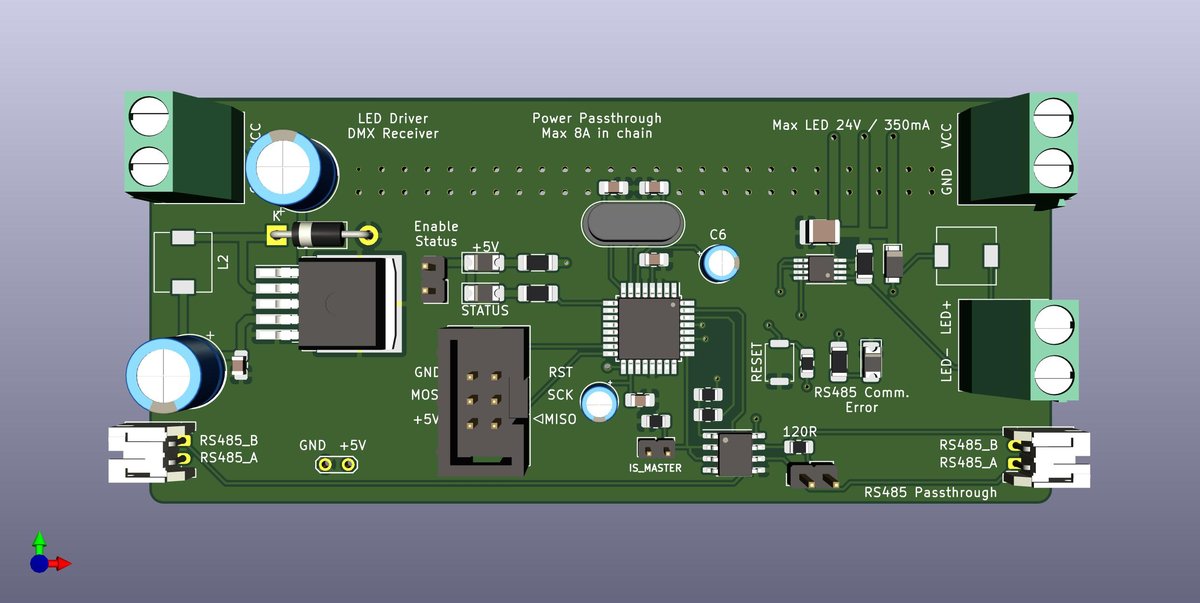
So, you've sketched out your brilliant electronic idea on paper, maybe even simulated it, and now it’s time to bring it to life – physically. This is where KiCad PCB Layout becomes your canvas, transforming abstract connections into tangible copper traces and components. Whether you're a seasoned engineer or just dipping your toes into hardware, mastering KiCad's layout tools is your gateway to creating professional-grade Printed Circuit Boards (PCBs) without breaking the bank.
KiCad, an open-source powerhouse, empowers you to take your schematics all the way to manufacturing files. But the leap from a neat circuit diagram to a functional, manufacturable PCB can feel like climbing Mount Everest. Don't worry, you've got a seasoned guide here. This comprehensive article will demystify the KiCad PCB layout process, offering practical steps, expert tips, and common pitfalls to avoid, ensuring your designs move smoothly from concept to reality.
At a Glance: Your KiCad PCB Layout Journey
- KiCad is Free & Powerful: Open-source EDA software, robust enough for professionals, accessible for beginners.
- Workflow is Key: Follow a logical path from schematic to layout to manufacturing files.
- Pcbnew is Your Layout Hub: This is the dedicated environment for component placement and routing.
- Design Rules are Your Best Friend: Configure manufacturer-specific rules before you start to prevent costly errors.
- DRC is Non-Negotiable: Run Design Rules Checks religiously to catch issues early.
- Output Files Matter: Generate industry-standard Gerber files for fabrication.
Why KiCad? The Foundation of Your Design
Before diving deep into the layout itself, it's worth understanding why KiCad has become such a beloved tool in the electronics design community. Born from a need for powerful yet accessible EDA software, KiCad has evolved significantly since its inception in 1992. It's cross-platform (Windows, macOS, Linux), boasts an integrated suite for schematic capture and PCB layout, and offers extensive, customizable libraries. Crucially, it's entirely free and open-source, fostering a vibrant community that continuously improves its features and provides robust support. For anyone serious about PCB design, understanding KiCad software's capabilities is a fundamental step.
KiCad isn't just about drawing lines; it's a complete ecosystem. It supports up to 32 copper layers, integrates SPICE simulation, and features a fantastic 3D viewer that lets you see your creation come to life before you even send it to a manufacturer. This comprehensive nature makes it an ideal choice for projects ranging from simple hobbyist boards to complex professional designs.
Setting Up for Success: Installation and Initial Configuration
Getting KiCad ready is straightforward, but a few initial setup steps can save you headaches down the line, especially concerning libraries and design rules.
- Download the Latest Stable Version: Always get your software from the official KiCad website (
https://www.kicad.org). Stable versions are less prone to bugs and more reliable for critical projects. - Installation: Follow the on-screen instructions for your operating system. For Windows, use the installer; for macOS, drag the .dmg to Applications. Ensure all core components – schematic editor (Eeschema), PCB editor (Pcbnew), and library manager – are selected during installation.
- Initial Configuration:
- Manage Libraries: Inside KiCad, navigate to
Preferences > Manage Symbol LibrariesandPreferences > Manage Footprint Libraries. These are crucial. You'll want to ensure you have access to standard libraries and know how to add custom ones. - Configure Paths: Double-check your library paths under
Preferences > Configure Paths. This tells KiCad where to find all your symbols and footprints. - Design Rules: This is paramount for PCB layout. In the PCB editor (Pcbnew), go to
File > Board Setup > Design Rules. Here, you'll input the manufacturing tolerances provided by your chosen PCB fabrication house. Think minimum trace width, clearance between pads, drill hole sizes, etc. Setting these up before you begin routing is non-negotiable. - User Preferences: Adjust units (mm/inches), hotkeys, default text sizes, and line widths to suit your workflow via
Preferences.
Your KiCad Workflow: A Step-by-Step Journey
Every successful PCB design follows a structured path. Here's the typical KiCad workflow that culminates in your beautiful PCB layout:
- Schematic Capture (Eeschema): You start by drawing your circuit diagram, defining component connections logically.
- Symbol & Footprint Assignment: Each component in your schematic needs a physical representation (a "footprint") for the PCB.
- Netlist Generation: This crucial step translates your schematic's connections into a list (the netlist) that the PCB layout editor understands.
- PCB Layout (Pcbnew): This is where the magic happens – arranging components, drawing copper traces, and defining the board's physical form.
- Design Rule Checking (DRC): A rigorous check to ensure your layout adheres to manufacturing specifications and electrical rules.
- Output Generation: Creating the industry-standard files (Gerbers, drill files, BOM) needed for manufacturing.
- 3D Visualization: A final aesthetic and mechanical check of your board.
Starting Your Project: The Blank Canvas
Every great design begins with a new project.
- Create Project: Open KiCad and select
File > New Project(orFile > New > Project). - Name and Save: Choose a suitable directory and give your project a descriptive name.
- Project Files: KiCad will generate a folder containing your essential project files:
.pro: The main project file..sch: Your schematic file (opens in Eeschema)..kicad_pcb: Your PCB layout file (opens in Pcbnew).
The Schematic First: Building Your Circuit's Brain (Eeschema)
While this article focuses on layout, a solid schematic is the absolute prerequisite for a good PCB. Think of it as the blueprint for your layout.
- Open Eeschema: Double-click the
.schfile in your project folder. - Add Components: Use the
Place Symboltool (shortcutA), search for components (e.g., "resistor", "capacitor", "IC"), and place them on the canvas. - Wire Components: Connect the pins with the
Place Wiretool (shortcutW). For complex or off-sheet connections, usePlace Net Label(shortcutL) and add power flags (Place Power Port) for VCC/GND. - Annotate: Assign unique reference designators (R1, C1, U1) using
Tools > Annotate Schematic. This makes your schematic readable and prepares it for the next step. - Electrical Rules Check (ERC): Run
Inspect > Electrical Rules Check. This catches errors like unconnected pins, conflicting outputs, and miswired power. Always fix red errors; review and understand yellow warnings.
Bridging the Gap: Symbols to Footprints
Before you can lay out your board, KiCad needs to know the physical dimensions and pad arrangements for each component. This is the role of the footprint.
- Assign Footprints: In Eeschema, go to
Tools > Assign Footprints(or pressCtrl+F). This window allows you to link each schematic symbol (e.g., a simple resistor symbol) to its corresponding physical footprint (e.g., "Resistor_SMD:R_0805_2012Metric" for a surface-mount resistor). - Browse Libraries: Browse KiCad's extensive footprint libraries, or use your own custom libraries. Pay close attention to package types (e.g., SMD, THT), dimensions, and pin counts. A mismatch here will lead to a non-functional or unmanufacturable board.
- Save and Close: Once all symbols have footprints, save the assignments.
Your Canvas: Diving into KiCad PCB Layout (Pcbnew)
Now for the main event: laying out your Printed Circuit Board in Pcbnew. This is where your virtual circuit becomes a physical reality.
1. Generating and Importing the Netlist
This is the bridge between your schematic and your PCB layout.
- Generate Netlist (Eeschema): Back in Eeschema, go to
Tools > Generate Netlist(or pressF8). Make sure to save the netlist file (it usually defaults to the project folder). This file contains all the component information and their connections. - Open Pcbnew: Double-click your
.kicad_pcbfile in the project folder. - Import Netlist (Pcbnew): In Pcbnew, go to
Tools > Update PCB from Schematic(shortcutF8). This will pull in all your components as "ratsnest" lines, showing connections that need to be routed. Review the changes window carefully for any errors or warnings.
2. Defining Your Board: Shape, Size, and Stackup
Your PCB isn't just a collection of components; it has a physical form.
- Board Outline: Use the
Edge.Cutslayer (selected from the layer manager on the right) to draw the outline of your PCB. Use theAdd Graphic Linetool to create straight lines or arcs. This defines the exact physical dimensions that will be cut by the manufacturer. - Board Setup: Access
File > Board Setup. This crucial dialog allows you to configure:
- Layers: Define your layer stackup (e.g., two-layer, four-layer).
- Text & Graphics: Set default text sizes for silkscreen.
- Design Rules: This is where you configure manufacturer-specific rules for clearances, track widths, via sizes, and more. Always input these specifications from your chosen fabricator. Ignoring this step is a recipe for expensive rework. For instance, your manufacturer might specify a minimum trace width of 6 mil (0.15mm) and a minimum clearance of 6 mil.
- Mounting Holes: If your board needs to be mounted in an enclosure, place mounting holes using
Place > Footprintand searching for "MountingHole".
3. Placing Your Components: The Art of Arrangement
Component placement is more art than science, influencing everything from signal integrity to thermal performance and manufacturability.
- Initial Placement: Your imported components will likely be clustered together. Use the
Movetool (shortcutM) to drag them onto your board outline. - Logical Grouping:
- Start with fixed components like connectors, mounting holes, and critical ICs.
- Group related components (e.g., power supply, microcontroller, sensor interface) to minimize trace lengths and improve signal integrity.
- Consider signal flow: arrange components so signals generally flow in one direction (e.g., left to right, top to bottom) to simplify routing.
- Think thermally: place heat-generating components away from heat-sensitive ones. Ensure high-power components have adequate copper area or heatsinks.
- Mechanical constraints: Remember your enclosure! Ensure components don't block mounting points or interact with other physical parts.
- Use
Rotate(shortcutR) to orient components. TheFliptool (shortcutF) can move components to the opposite side of the board.
- Reference Designators: Ensure reference designators (R1, C2, U3) are readable, not overlapping pads or vias, and positioned logically near their components. Adjust their position on the
F.SilkS(Front Silkscreen) andB.SilkS(Back Silkscreen) layers.
4. Routing Traces: Connecting the Dots
Once components are placed, it's time to draw the copper connections, guided by the "ratsnest" lines.
- Select Layer: Use the
Layer Manageron the right (or shortcutL) to select the active copper layer (e.g.,F.Cufor front copper,B.Cufor back copper). - Route Tracks: Use the
Route Trackstool (shortcutX). Click a pad, and drag to draw a trace along the ratsnest line to its destination pad. - Interactive Routing: KiCad's interactive router is powerful. It can push and shove existing traces, making rerouting much easier.
- Vias: To switch layers, while routing, press
V. KiCad will automatically place a via (a plated hole connecting layers) and allow you to continue routing on the new layer. - Trace Widths: Adjust trace widths based on current requirements (wider for power, narrower for signals if desired). You can pre-define common track widths in
Board Setup > Design Rules > Net Classes. - Routing Best Practices:
- Minimize Length: Keep traces as short as possible to reduce resistance, inductance, and capacitance.
- Avoid Sharp Angles: Use 45-degree bends instead of 90-degree corners to prevent acid traps during manufacturing and improve signal integrity.
- Keep Signals Separated: Route sensitive analog signals away from noisy digital signals.
- Differential Pairs: For high-speed signals (like USB data), use the
Route Differential Pairstool to route two traces with precise spacing and length matching. - Length Matching: For critical high-speed buses, use
Tune Trace Lengthto ensure traces have identical electrical lengths. - Standoffs: Maintain proper clearances between traces and between traces and pads, always adhering to your design rules.
5. Copper Pours and Planes: Power and Ground Distribution
Copper zones, also known as pours or planes, are essential for distributing power and ground, reducing noise, and improving thermal performance.
- Add Filled Zones: Use the
Add filled zonestool. Draw the outline of your desired zone on a copper layer (e.g.,F.CuorB.Cu). - Assign Net: In the zone properties, assign it to a net, typically
GNDor a power net likeVCC. - Connection Style: Configure the connection style for pads within the zone:
- Thermal Reliefs: For through-hole components, thermal reliefs create a spoke pattern connecting the pad to the plane, making soldering easier without pulling too much heat away.
- Solid: Direct connection, common for SMD pads.
- Recalculate: After placing or modifying zones, right-click and select
Fill all zones(shortcutB) to regenerate the copper fill.
6. Design Rules Check (DRC): Your Layout's Lifeguard
This is perhaps the most critical step in the PCB layout process. The DRC tool systematically checks your layout against the rules you defined in Board Setup.
- Run DRC: Go to
Inspect > Design Rules Check. - Review Errors: The DRC manager will list all violations (e.g., trace too close to a pad, trace too narrow, drill hole too small).
- Fix and Rerun: Address every error. Do not send your board for manufacturing until the DRC is clean. Some warnings might be acceptable, but errors typically indicate manufacturing problems or functional issues. Common DRC errors include:
- Clearance violations: Traces or pads too close.
- Unconnected items: Ratsnest line still present (missed connection).
- Track width violations: Trace is thinner than specified minimum.
- Annular ring violations: Hole too large for the pad.
Output Generation: From Design to Fabrication
Your final step is generating the files your PCB manufacturer needs to fabricate and assemble your board.
- Gerber Files: These are the industry standard for PCB fabrication.
- Go to
File > Plot. - Select the desired layers (e.g., all copper layers,
F.SilkS,B.SilkS,F.Mask,B.Mask,Edge.Cuts). - Choose an output directory.
- Click
Plot.
- Drill Files: These specify the locations and sizes of all drilled holes.
- Go to
File > Fabrication Outputs > Drill Files. - Choose an output directory.
- Click
Generate Drill File.
- Bill of Materials (BOM): A list of all components on your board.
- Go to
Tools > Generate Bill of Materials. - Choose an output format (e.g., CSV, HTML).
- Click
Generate.
- Pick-and-Place Files: For automated assembly machines.
- Go to
File > Fabrication Outputs > Footprint Position (.pos) File.
Always package all these files into a single ZIP folder and send them to your fabricator. It’s also wise to use a Gerber viewer to double-check your generated files before sending them off.
Beyond the Basics: Advanced KiCad PCB Layout Features
KiCad offers a wealth of advanced features that can streamline your design process and enhance your project.
- 3D Visualization: In Pcbnew, click the
View 3D Viewericon (shortcutAlt+3). This lets you inspect component placement, check mechanical clearances with enclosures (if you've imported STEP models), and simply admire your work. You can also export the board as a STEP model for mechanical CAD integration. - Scripting and Automation: KiCad supports Python scripting. This allows you to automate repetitive tasks, create custom design rule checks, or generate specialized output files. The community provides many useful scripts, and you can write your own for unique workflows.
- Version Control Integration: For serious projects, integrating with version control systems like Git is crucial. KiCad's project files (
.pro,.sch,.kicad_pcb) are text-based, making them suitable for tracking changes. This lets you revert to previous versions, manage concurrent development, and maintain a robust design history. Learning about KiCad's evolution and community support often highlights how these features benefit collaborative projects.
Mastering Your Design: Tips and Best Practices
Crafting an excellent PCB layout isn't just about knowing the tools; it's about adopting smart practices.
- Plan, Plan, Plan: Before opening KiCad, sketch out your circuit, consider physical constraints, and even do a rough component placement. A little planning saves hours of rework.
- Hierarchical Schematics: For complex designs, use hierarchical sheets in Eeschema to organize your circuit into logical blocks. This improves readability and manageability.
- Adhere to Manufacturer's Rules: Always, always use the design rules provided by your PCB fabricator. This prevents frustrating and costly re-spins.
- Leverage Copper Pours: Use large copper zones for ground and power planes. They reduce electromagnetic interference (EMI), improve signal integrity by providing a low-impedance return path, and help with thermal dissipation.
- Route with a Purpose: Don't just connect the ratsnest randomly. Think about signal flow, high-speed paths, and power distribution. Keep power and ground traces wide.
- Regular Checks: Run ERC on your schematic and DRC on your PCB frequently, not just at the end. Catching issues early is far easier.
- Document Everything: Add notes, labels, and silkscreen text to your schematic and PCB. It helps you remember your design intent and aids anyone else working on the project.
- Test and Prototype: For critical designs, consider having a few prototype boards made before committing to a large production run.
- Custom Libraries: Create custom symbols and footprints for components you frequently use or for unique parts not found in standard libraries. This ensures consistency and saves time.
- Manufacturing Considerations: Be mindful of component spacing for pick-and-place machines, test points for debugging, and panelization options if you plan for mass production. This is an important aspect to consider when evaluating what KiCad offers for professional use.
Navigating the Minefield: Common Pitfalls and Solutions
Even experienced designers run into common issues. Knowing them upfront can save you considerable grief.
- Missing Footprints:
- Pitfall: Forget to assign footprints in Eeschema, or assign the wrong ones.
- Solution: Run
Tools > Update PCB from Schematicand carefully review the report for "warnings" about missing footprints. Double-check all assignments. - DRC Errors After Routing:
- Pitfall: Ignoring design rules during routing, leading to a cascade of DRC violations.
- Solution: Set up your design rules in
Board Setupbefore you start routing. Use KiCad's interactive router, which respects design rules. Fix every error before generating output files. - Silkscreen Overlapping Pads/Vias:
- Pitfall: Text or outlines on the silkscreen layer covering pads, making soldering difficult or illegible.
- Solution: Manually adjust silkscreen elements (
F.SilkS,B.SilkS) in Pcbnew to ensure they are clear of pads, vias, and component bodies. - Thermal Management Issues:
- Pitfall: High-current traces are too narrow, or heat-generating components lack sufficient copper area for heat dissipation.
- Solution: Use wider traces for high-current paths. Utilize copper pours to provide ample heat dissipation for power components. Consult datasheets for thermal recommendations.
- Signal Integrity Problems (for high-speed designs):
- Pitfall: Long, unshielded traces, poor impedance matching, or ground bounce causing signal degradation.
- Solution: Keep high-speed traces short and direct. Use proper termination resistors. Implement solid ground planes. Employ differential routing for sensitive signals. Consult resources on signal integrity for best practices.
- Incorrect Drill File Generation:
- Pitfall: Selecting the wrong units or format (e.g., absolute vs. incremental) for drill files, leading to incorrect hole sizes or positions.
- Solution: Always use the drill file settings recommended by your fabricator. Typically,
Excellonformat with2:4decimal precision andabsolutecoordinates is standard. Double-check the drill map in a Gerber viewer.
Your Next Steps in KiCad PCB Layout
You've now got a comprehensive understanding of the KiCad PCB layout process, from setting up your project to generating the files for manufacturing. The journey from idea to physical hardware is incredibly rewarding, and KiCad puts powerful tools directly into your hands.
The best way to master KiCad is to start designing. Pick a simple project – perhaps a small LED blinker, a simple sensor interface, or a basic power supply – and work through the entire workflow yourself. Don't be afraid to make mistakes; they're valuable learning opportunities. The KiCad community is vast and supportive, offering forums, tutorials, and libraries to help you along the way. Your innovative electronic designs are just a few clicks and copper traces away!